
Device Fingerprinting
In the Device Fingerprinting guide, you learned how you can combat piracy of your content by displaying a device-specific watermark on the screen.
In this tutorial, we'll write a very simple Node.js script that calls the API.
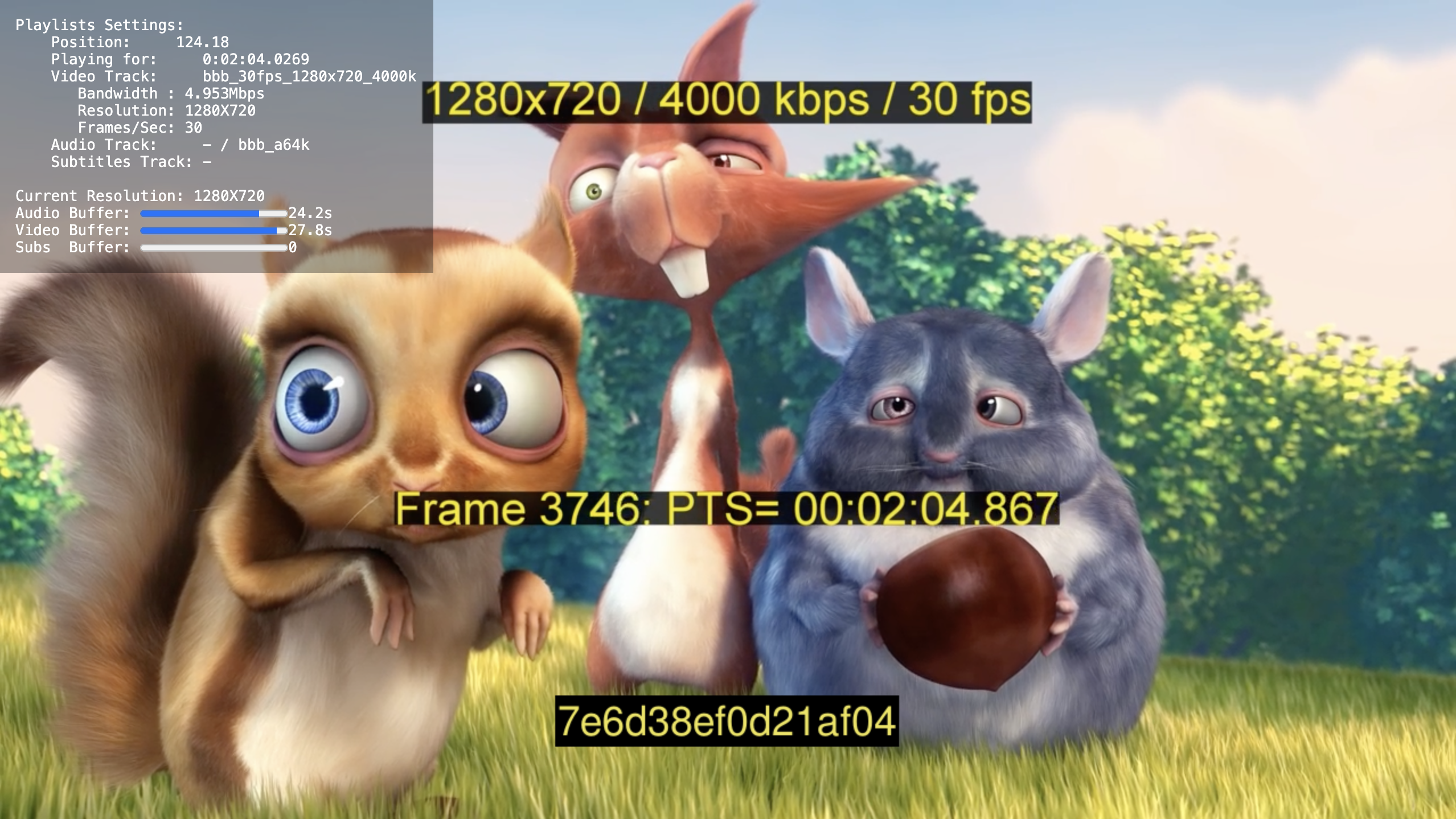
NoteIn this screenshot, the resolution and timecode are part of the video itself, while the device ID is added by the device-fingerprinting feature. The fingerprint is styled to match the other text through the API, but is rendered in a completely different way!
Prerequisites
- Create an API Key for a tenant with
senza:messages:send-directandsenza:messages:send-grouppermissions. - Read the guide on Making API Requests to learn how to call the Senza API.
Display Fingerprint API
See the Display Fingerprint page in the API Reference for full details on calling the API.
You can make a POST request to https://api.senza.synamedia.com/tenants/1.1/{tenantId}/displayFingerprint. Include the ID of the tenant corresponding to the one you selected when creating the API key in the URL path.
The body of the request should contain these parameters:
textColor: Hexadecimal color code for the text color, i.e.#FFFFFFFF. Note that it takes an eight-character code with RGBA values. For the last two characters,00represents transparent andFFis opaque.backgroundColor: Hexadecimal color code for the background color, in the same format.position: Position of the fingerprint display on the screen, which can be one of these strings:- top-left, top-center, top-right
- middle-left, middle-center, middle-right
- bottom-left, bottom-center, bottom-right
duration: Duration in seconds to display the fingerprint on the screen. Duration with 0 turns it off.fontSize: Font size for the fingerprint text.
For example, calling the API with these parameters will display the fingerprint as shown in the screen capture above, with 38-point yellow text on a black background.
{
  "textColor":"#EEE450FF",
  "backgroundColor":"#000000FF",
  "position":"bottom-center",
  "duration":1200,
  "fontSize":38
}
Script
Here is a very short Node.js script that demonstrates how to call the API.
Start by editing the config.json file with:
- your tenant ID
- the client ID and client secret you obtained when creating your API key
- the body parameters you'd like to use
{
  "tenantId": "your-tenant-id",
  "oauth": {
    "client_id": "your-client-id",
    "client_secret": "your-client-secret",
    "audience": "https://projects.synamedia.com",
    "grant_type": "client_credentials"
  },
  "params": {
    "textColor": "#EEE450FF",
    "backgroundColor":" #000000FF",
    "position": "bottom-center",
    "duration": 20,
    "fontSize": 38
  }
}
Here is the whole script:
import config from './config.json' with {type: "json"};

async function getAccessToken() {
  let tokenResponse = await fetch("https://auth.synamedia.com/oauth/token", {
  	method: "post",
  	body: JSON.stringify(config.oauth),
  	headers: {"Content-Type": "application/json"}
  });
  let json = await tokenResponse.json();
  return json.access_token;
}

async function displayFingerprint(accessToken, tenantId, params) {
  let res = await fetch(`https://api.senza.synamedia.com/tenants/1.1/${tenantId}/displayFingerprint`, {
  	method: "post",
  	body: JSON.stringify(params),
  	headers: {
      "Content-Type": "application/json",
      "Authorization": "Bearer " + accessToken
    }
  });
  console.log(res.status);
}

(async () => {
  const accessToken = await getAccessToken();
  await displayFingerprint(accessToken, config.tenantId, config.params);
})();
First, the script exchanges the API key for an access token by calling the Auth Token endpoint.
Then, it calls the Display Fingerprint API with the tenant ID in the URL path, the access token in the headers, and the body parameters from the config file.
You don't need to install anything because the script does not depend on any packages. To run the script, call:
node device-fingerprint.jsIt will print 200 indicating success. All devices in the tenant will then display the device ID fingerprint.
Examples
You can opt a subtle look:
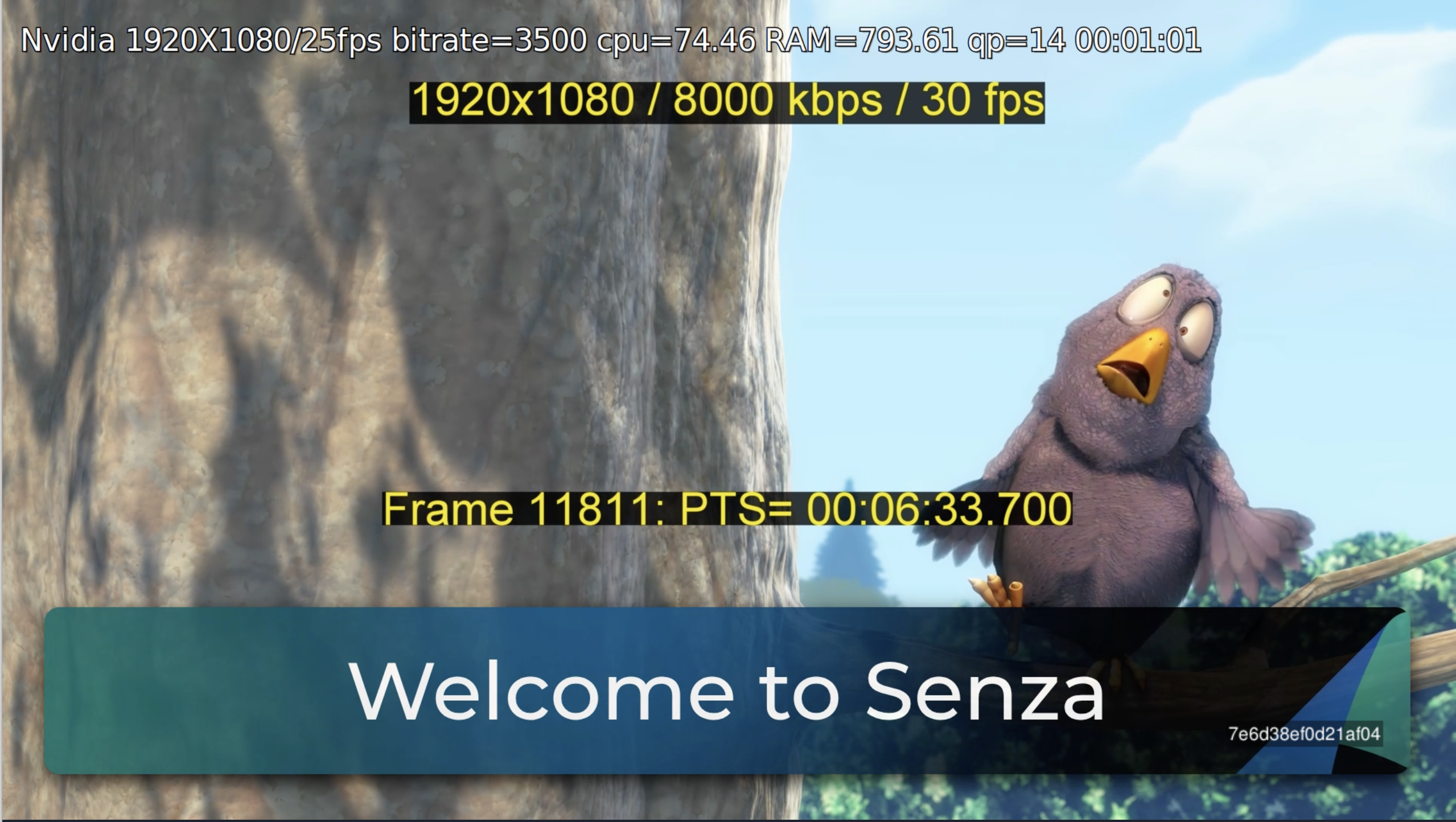
  "params": {
    "textColor": "#e20074FF",
    "backgroundColor":" #5D3FD3FF",
    "position": "middle-center",
    "duration": 100,
    "fontSize": 80
  }
Or a not-so-subtle look:
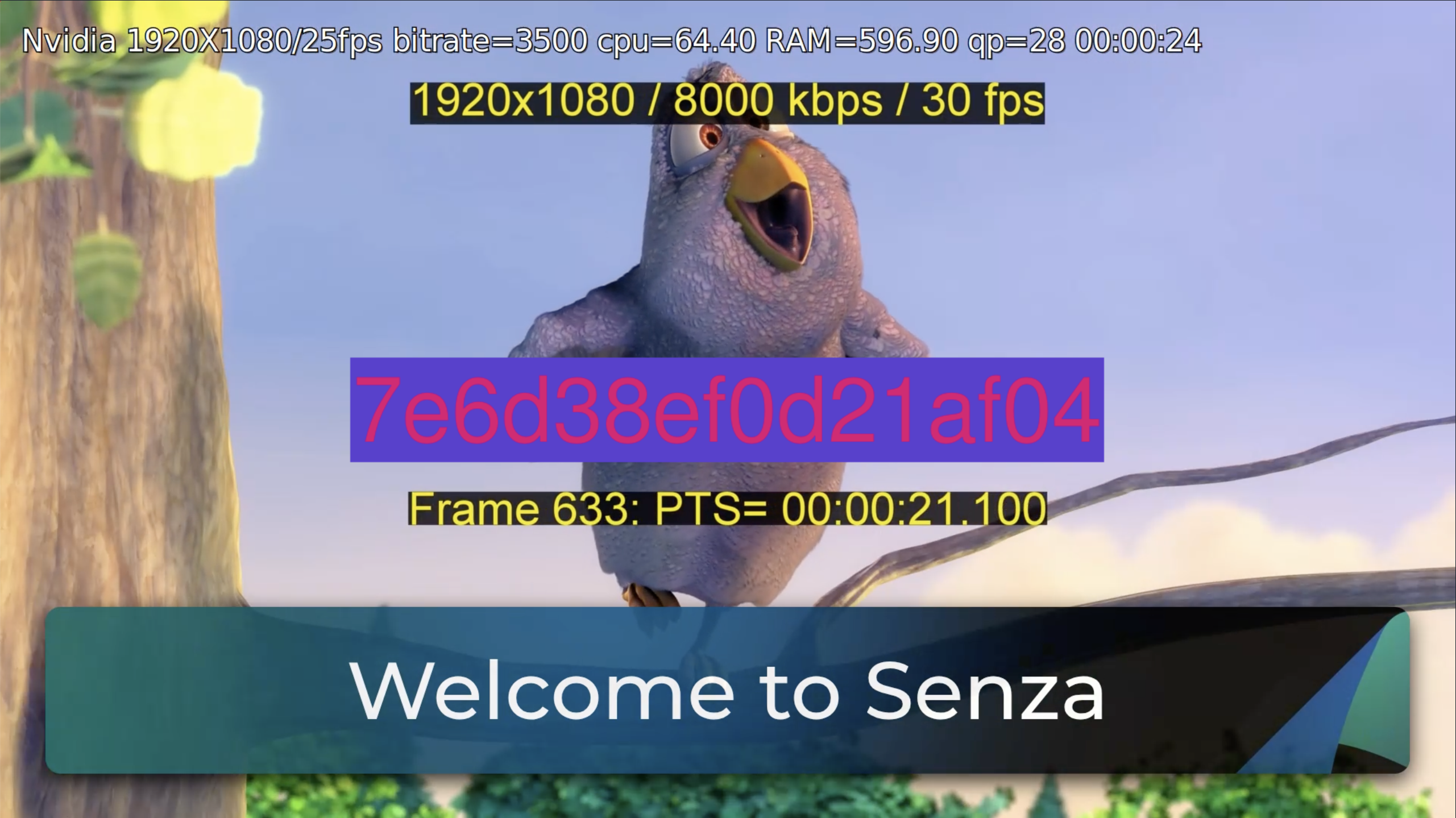
  "params": {
    "textColor": "#e20074FF",
    "backgroundColor":" #5D3FD3FF",
    "position": "middle-center",
    "duration": 100,
    "fontSize": 80
  }
Updated 5 months ago